Browser extension: install and start learning
Install Rolko, connect your account, enable a website, and learn from webpages and video subtitles.
If asked to sign in, do that first. Choose English to study and Chinese for meanings. Button names below match the English interface.
- Open the Chrome Web Store, select Add to Chrome, then Add extension. Pin Rolko from the puzzle-piece menu.
- Sign in to Rolko in the same browser. Open a website, click the Rolko icon, then Try Rolko on this page and allow access.
- Hover a word to see its meaning. For videos, turn on English subtitles and switch Rolko ON. Choose Learning to save useful words.
Dictionary lookup is free. Saving words in the extension needs Starter, Plus or Pro. On a phone, use Reading Workspace.
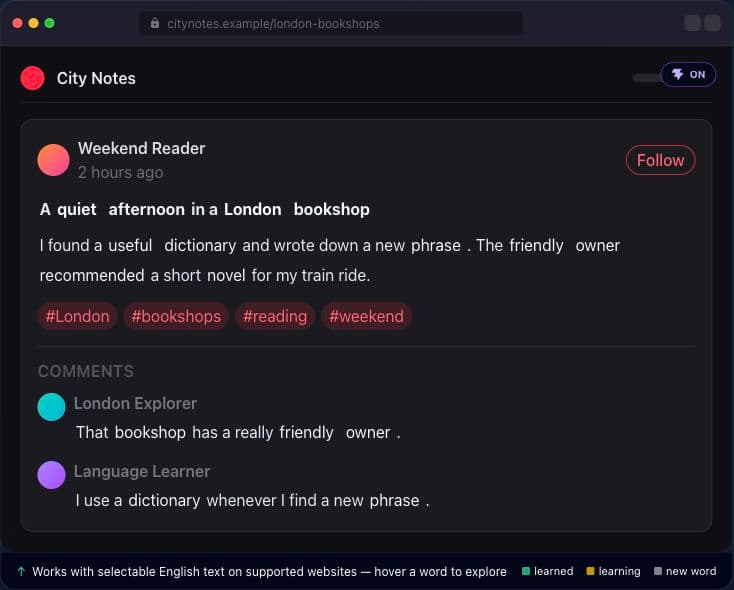
Interactive example — practice here before opening a website
More help & options
Back to the main getting-started guide
Use Rolko on desktop to learn English with Chinese meanings. On mobile, use Reading Workspace.
1. Install and pin Rolko
Open the Chrome Web Store → Add to Chrome → Add extension. Pin Rolko from the browser’s puzzle-piece menu.
2. Connect your account and languages
Sign in in the same browser. Choose English → Chinese in the app’s language selectors.
3. Enable the current website
Open a page → click the Rolko toolbar icon → Try Rolko on this page. Approve the connection. Choose Always enable on for sites you use often.
4. Read webpage text
Hover an unfamiliar English word. Read the meaning; use audio when available.
5. Learn from video subtitles
Turn on English captions on YouTube, Netflix or Bilibili, then switch Rolko ON. Hover a subtitle word or reveal the Chinese translation. Bilibili has no timed A/S/D navigation or cue-end auto-pause.
6. Save and review useful words
Choose Learning to practise a word or Learned if you know it. Find saved words in Words and Review. Saving in the extension requires Starter, Plus or Pro; dictionary lookup is free.
7. If something does not work
No popup? Check website access, your language pair and Page Text Hover, then refresh. No subtitles? Try a video with English captions. Signed out? Sign in again in the same browser. Still stuck? Report the problem.